After creating a new ChronoCMS website either through the Control Panel or through the My Websites page under your account, you will need to follow these steps to create a new admin account and lock the admin area.
First, open your new website admin area which is http://www.domain.com/admin (if you are using the demo on chronocms.com then this will typically be http://your-domain.chronocms.com/admin
The admin link can be found on the "My Websites" page under your account if you are trying the ChronoCMS demo:
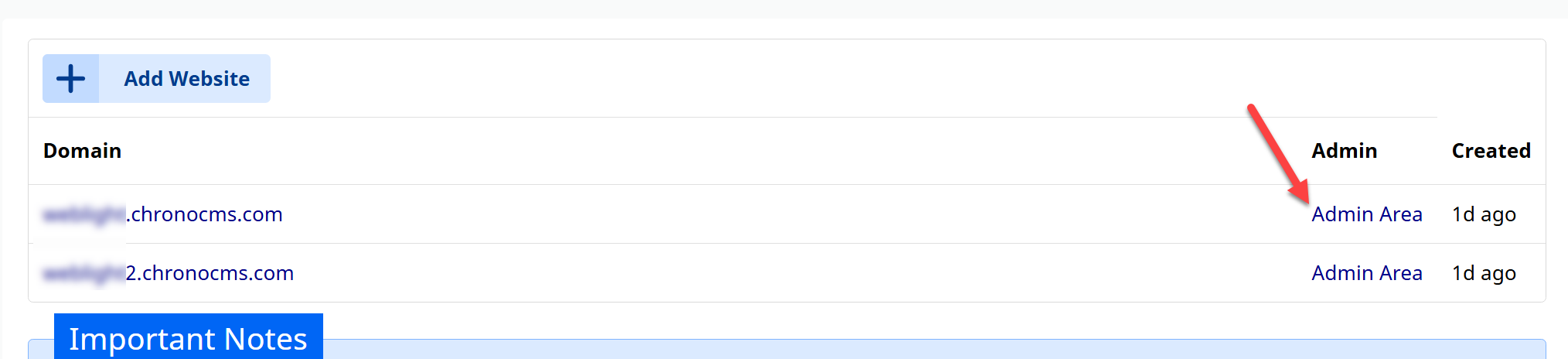
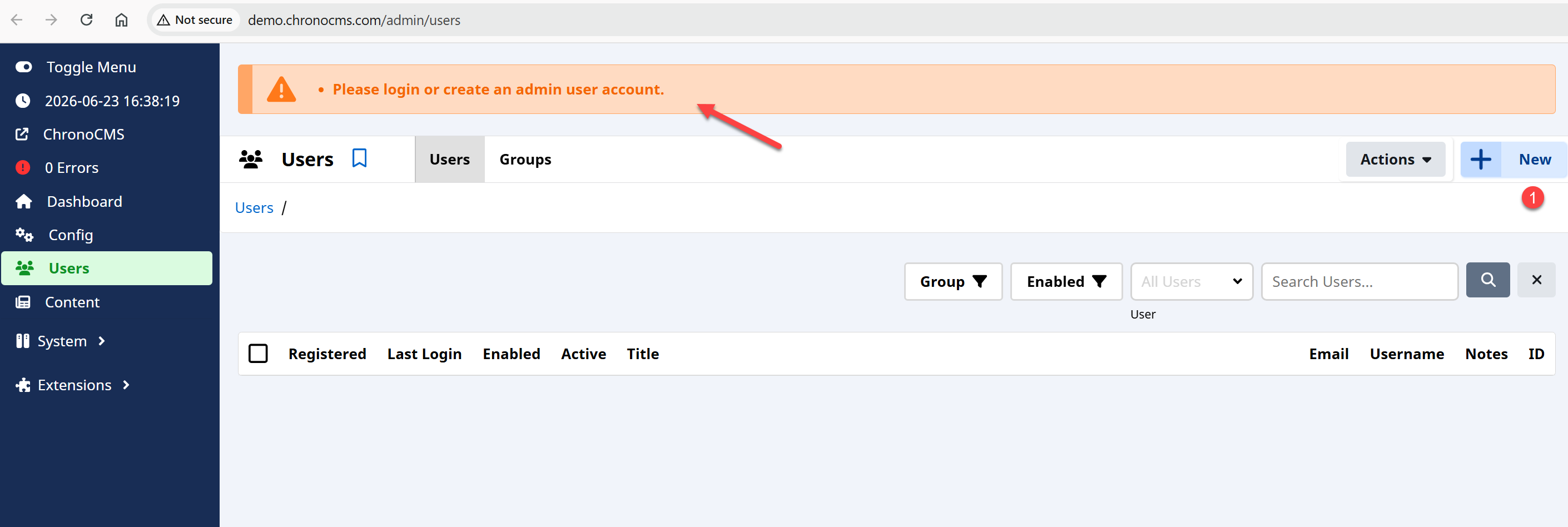
Once you click the Admin Area link and the admin area of the new website is opened, you will be forced to create an admin user account, click the New button at the top right corner:
On the new user page, make sure you add all the necessary user details and add the user to the Super Users group and make sure it's Enabled as shown:
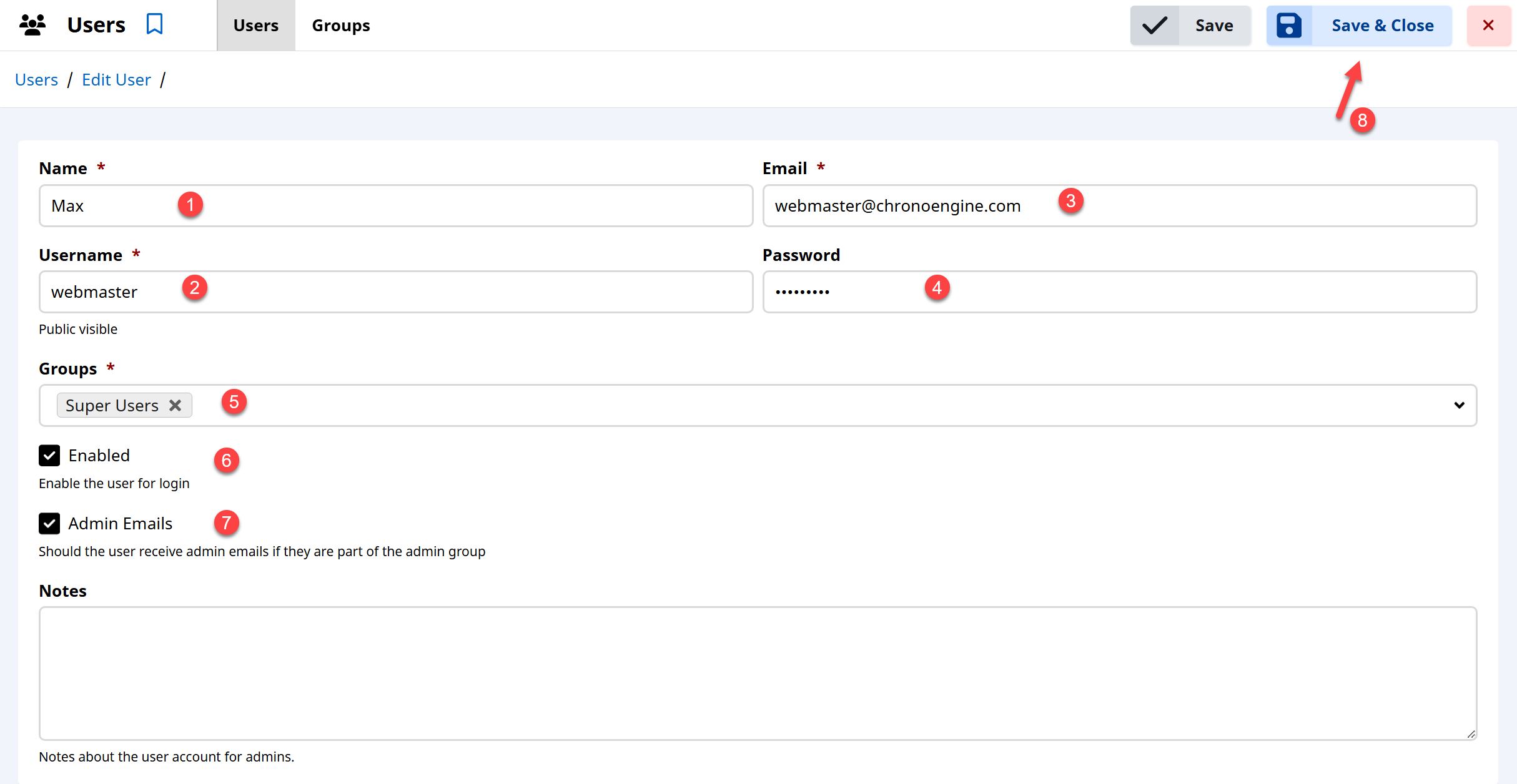
Click Save & Close at the top right corner to finish creating the new user.
We now need to lock the admin area for other public users, Click the Config link on the left side panel:
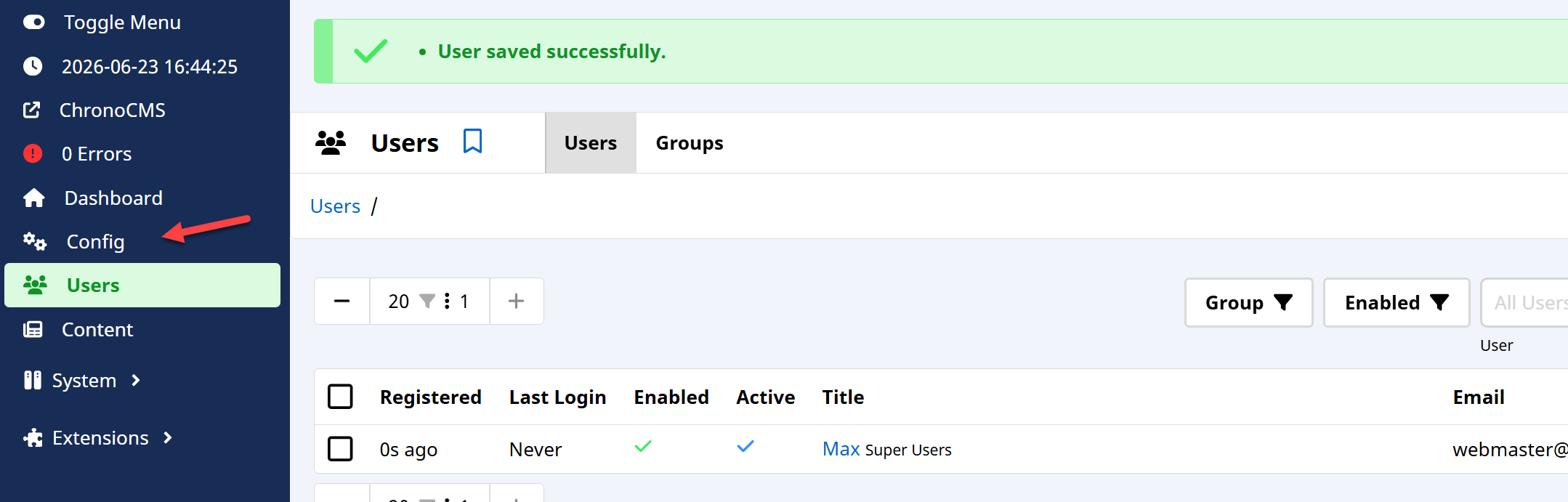
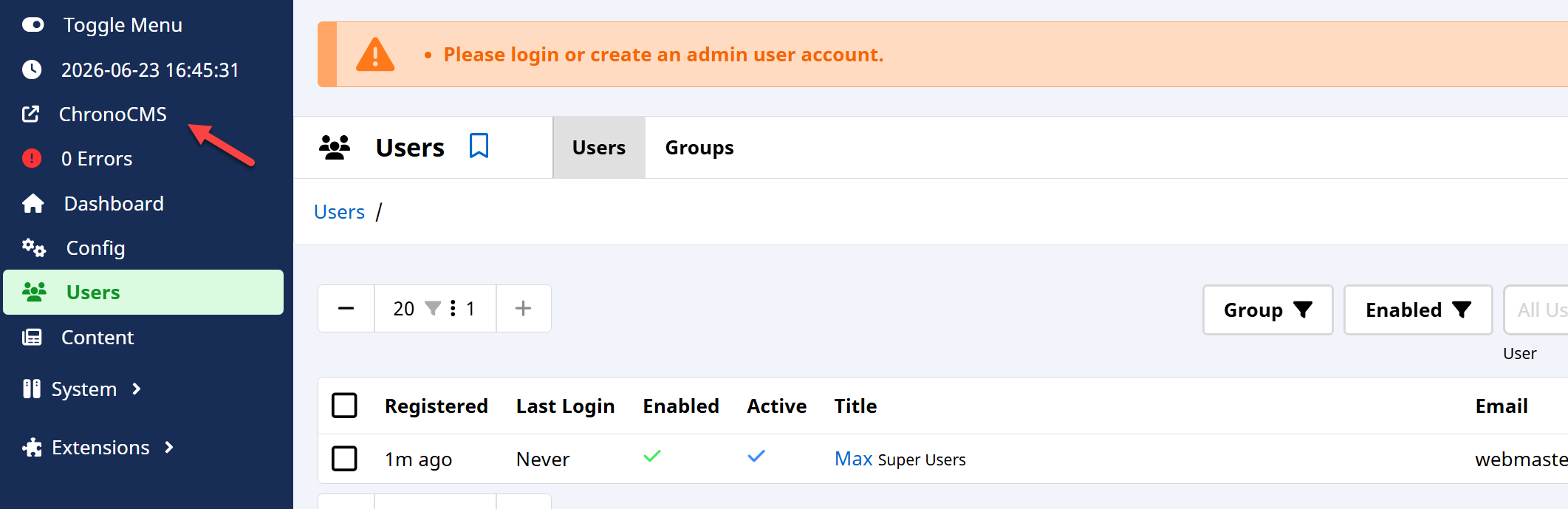
You will receive an error because the system locks you from doing any admin actions before you are logged in, so click the ChronoCMS link to open the site frontend and login:
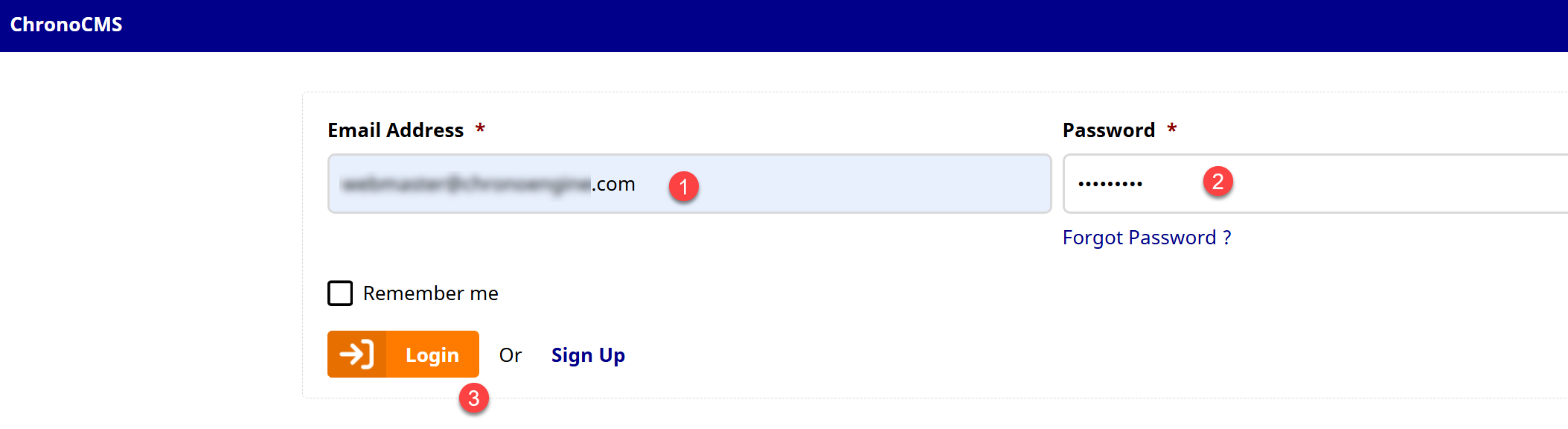
On the front page enter your new admin account user details and click Login:
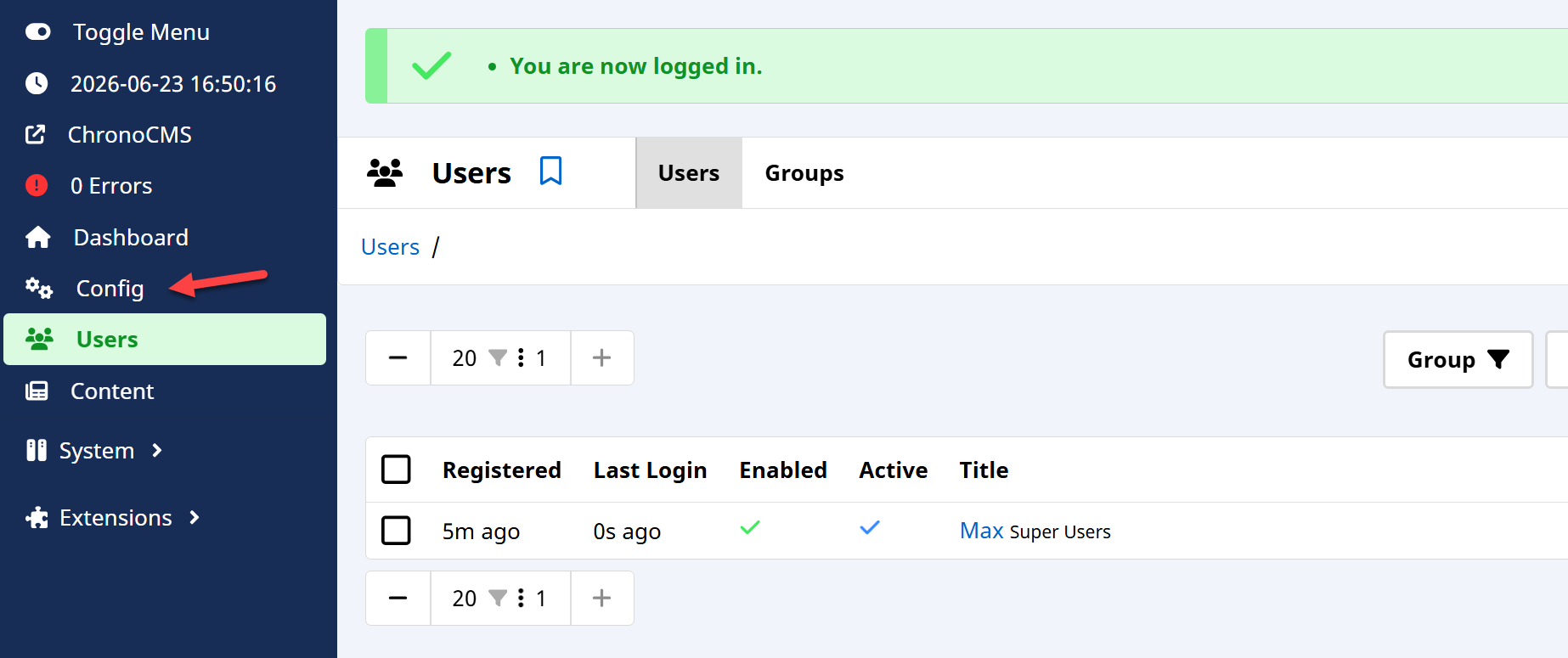
You are now logged in and can access the website configuration:
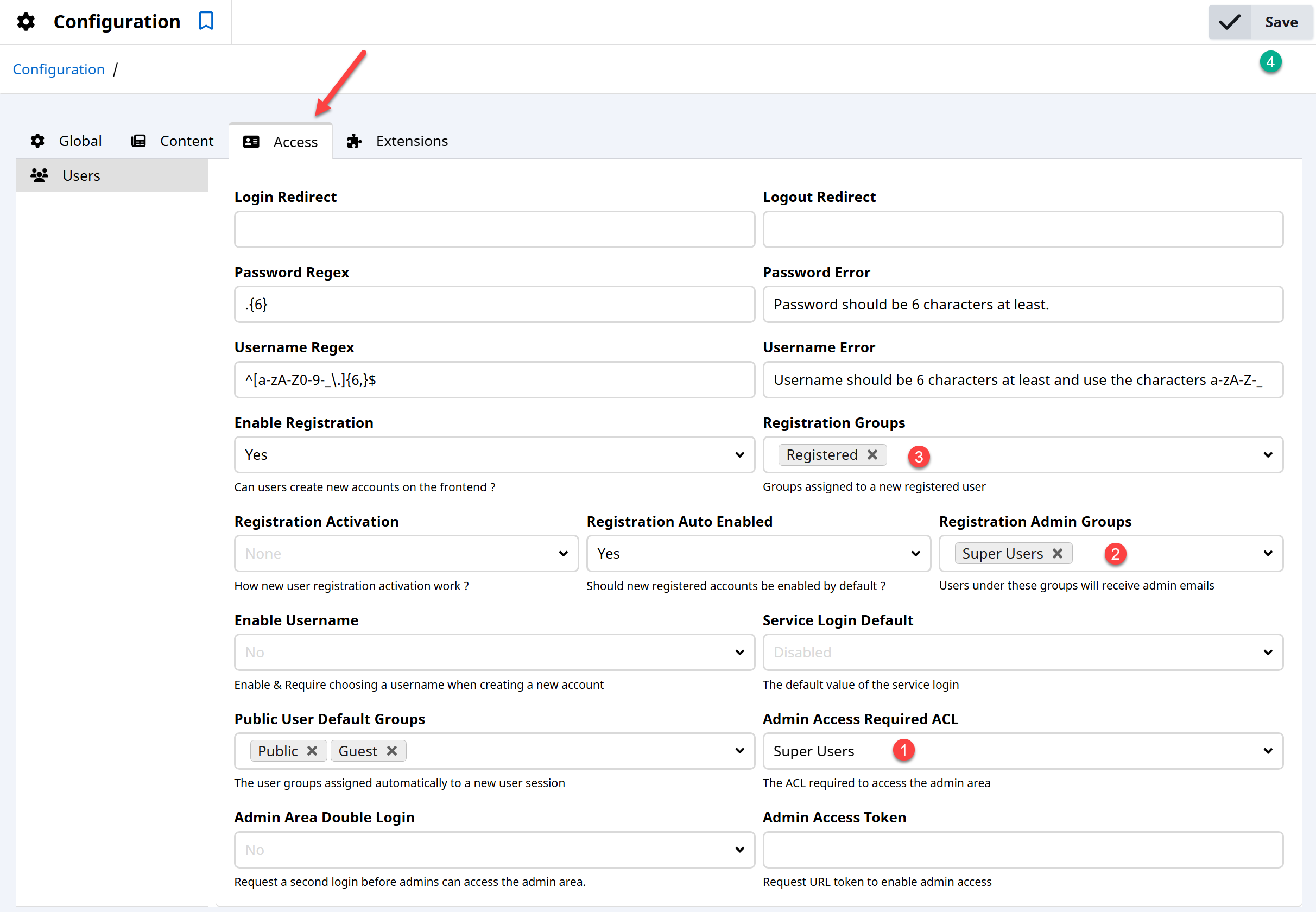
Under the Configuration area, open the Access tab, then set the Admin Access Required ACL to Super Users as shown below, optionally and based on your needs you may want to set the new registered user group then click Save at the top right corner:
That's it, your new ChronoCMS site is now ready to use and no public users can access the admin area.